🔓 How to open: Add ?admin=1 to the end of the page URL (e.g. products.html?admin=1).
🖼 Adding a photo: In the "Edit Product" or "Add Product" form, paste a direct image URL into the Image URL field. You can upload your photo to Google Drive, make it public, and copy the direct link — or use services like imgur.com (free image hosting).
✏️ Editing a product: Click the edit (pencil) button next to any product in the list. Change the fields you want. Click Save Changes. The product will update on the page immediately.
➕ Adding a product: Go to the "Add Product" tab. Fill in the required fields (Name, Category, Sub-Category at minimum). Click Add Product.
🗑 Deleting: Click the red trash icon next to any product in the list.
💾 Saving permanently: Changes only last while the page is open. To save permanently, click "Export Updated Products" (appears after any edit), copy the JSON, and send it to your developer to replace the PRODUCTS array — or save it yourself in the HTML file.
💡 Tip: The password is set in the code. Your developer can change it to anything you like. Current password: plylam2026

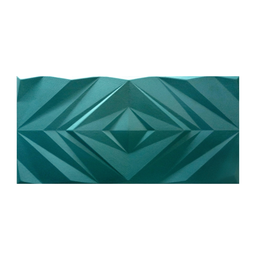 Decorative Wall Panels
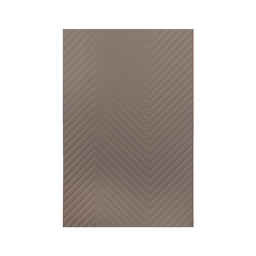 Laminates
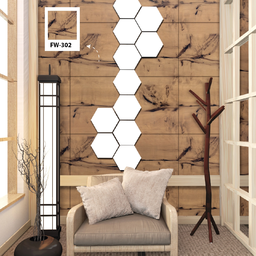 Acrylic Laminates
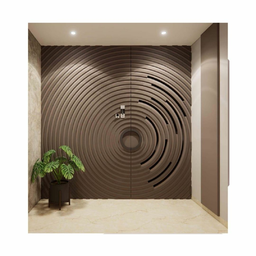 3D Wall Panels & Doors
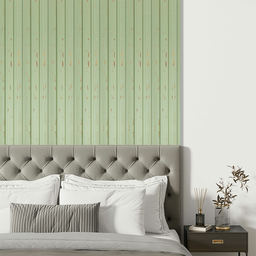 Louvers & Planks
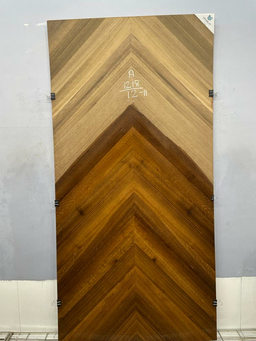 Veneer